OpenVox Document Center OpenVox Document Center
  • Home 
  • Products 
  • Solutions 
  • Resources 
    • Document Center 
    • Datasheets 
    • Firmwares 
    • Videos 
  • Partners 
  • Blog 
  • Company 
OpenVox Document Center OpenVox Document Center
OpenVox Document Center
  • Home 
  • Products 
  • Solutions 
  • Resources 
    • Document Center 
    • Datasheets 
    • Firmwares 
    • Videos 
  • Partners 
  • Blog 
  • Company 

Analog Gateway (OIAD)

  • folder icon closed folder iconUser Manual
    • MAG1000 Analog Gateway User Manual
    • iAG801 Analog Gateway User Manual
    • iAG800 Analog Gateway User Manual
    • iAG200/400 Analog Gateway User Manual
    • iAG802 Analog Gateway User Manual
    • MAG1100 Analog Gateway User Manual
    • MAG2000 Analog Gateway User Manual
    • MAG2100 Analog Gateway User Manual
  • folder icon closed folder iconApplication Notes
    • New version of analog gateway OIAD connected to UC200
    • IAG200/IAG400 OIAD Analog Gateway Quick Installation Guide
    • New version of analog gateway OIAD connected to UC500
    • iAG800 V2 OIAD Analog Gateway Quick Installation Guide
    • New version of analog gateway OIAD connected to 3CX
    • MAG1000 OIAD Analog Gateway Quick Installation Guide
    • New version of analog gateway OIAD connect to Yeastar
    • MAG1100 Analog Gateway Quick Installation Guide
    • New version of analog gateway OIAD connect to FreePBX
    • How to connect OIAD Gateway to IMS network(Network mode is bridge)
    • How to connect OIAD Gateway to IMS network(Network mode is route)
    • Gateway self-switching and PBX interworking configuration instructions
  • folder icon closed folder iconFAQ
    • Analog Gateway FAQ
  • folder icon closed folder iconFunctions Guide
    • How to Configure Self-Exchange
    • How to configure OpenVPN
  • folder icon closed folder iconAPI Document
    • 1 Public
    • 2 Authentication management category
    • 3 Network Function Class
    • 4 System Function Classes
    • 5 IAD analogue class
    • 6 IAD digital class
    • 7 IAD General Classes
    • How to use API
    • The API logic between CPU board and Gateway Board on UCP
  • folder icon closed folder iconAuto Provision Guide
    • Auto Provision VOIP Parameters
    • Auto Provision Network Parameters
    • Auto Provision System Parameters
    • Auto Provision for OIAD

Analog Gateway (OIAD)

  • folder icon closed folder iconUser Manual
    • MAG1000 Analog Gateway User Manual
    • iAG801 Analog Gateway User Manual
    • iAG800 Analog Gateway User Manual
    • iAG200/400 Analog Gateway User Manual
    • iAG802 Analog Gateway User Manual
    • MAG1100 Analog Gateway User Manual
    • MAG2000 Analog Gateway User Manual
    • MAG2100 Analog Gateway User Manual
  • folder icon closed folder iconApplication Notes
    • New version of analog gateway OIAD connected to UC200
    • IAG200/IAG400 OIAD Analog Gateway Quick Installation Guide
    • New version of analog gateway OIAD connected to UC500
    • iAG800 V2 OIAD Analog Gateway Quick Installation Guide
    • New version of analog gateway OIAD connected to 3CX
    • MAG1000 OIAD Analog Gateway Quick Installation Guide
    • New version of analog gateway OIAD connect to Yeastar
    • MAG1100 Analog Gateway Quick Installation Guide
    • New version of analog gateway OIAD connect to FreePBX
    • How to connect OIAD Gateway to IMS network(Network mode is bridge)
    • How to connect OIAD Gateway to IMS network(Network mode is route)
    • Gateway self-switching and PBX interworking configuration instructions
  • folder icon closed folder iconFAQ
    • Analog Gateway FAQ
  • folder icon closed folder iconFunctions Guide
    • How to Configure Self-Exchange
    • How to configure OpenVPN
  • folder icon closed folder iconAPI Document
    • 1 Public
    • 2 Authentication management category
    • 3 Network Function Class
    • 4 System Function Classes
    • 5 IAD analogue class
    • 6 IAD digital class
    • 7 IAD General Classes
    • How to use API
    • The API logic between CPU board and Gateway Board on UCP
  • folder icon closed folder iconAuto Provision Guide
    • Auto Provision VOIP Parameters
    • Auto Provision Network Parameters
    • Auto Provision System Parameters
    • Auto Provision for OIAD

Gateway self-switching and PBX interworking configuration instructions

Estimated reading: 3 minutes 5 views

FXS Gateway Local Switching and PBX Interconnection Configuration Guide

1. Overview

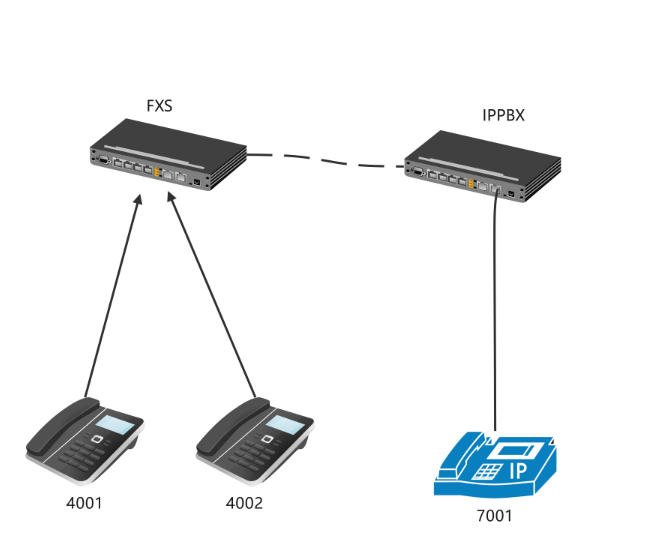
When an FXS gateway connects to a PBX through a SIP peer-to-peer trunk (SIP Trunk / P2P) without registration, enable local switching on the gateway so that calls between FXS analog phones bypass the PBX.

Call scenario Call path
Calls between FXS analog phones (for example, 4001 calls 4002) Switched locally by the FXS gateway, bypassing the PBX
Calls between a softphone registered with the PBX and an FXS analog phone (for example, 7001 and 4001) Routed through the SIP peer-to-peer trunk between the PBX and the FXS gateway

image 20260924165031354

2. Configuration Steps

2.1 Configure the FXS Gateway

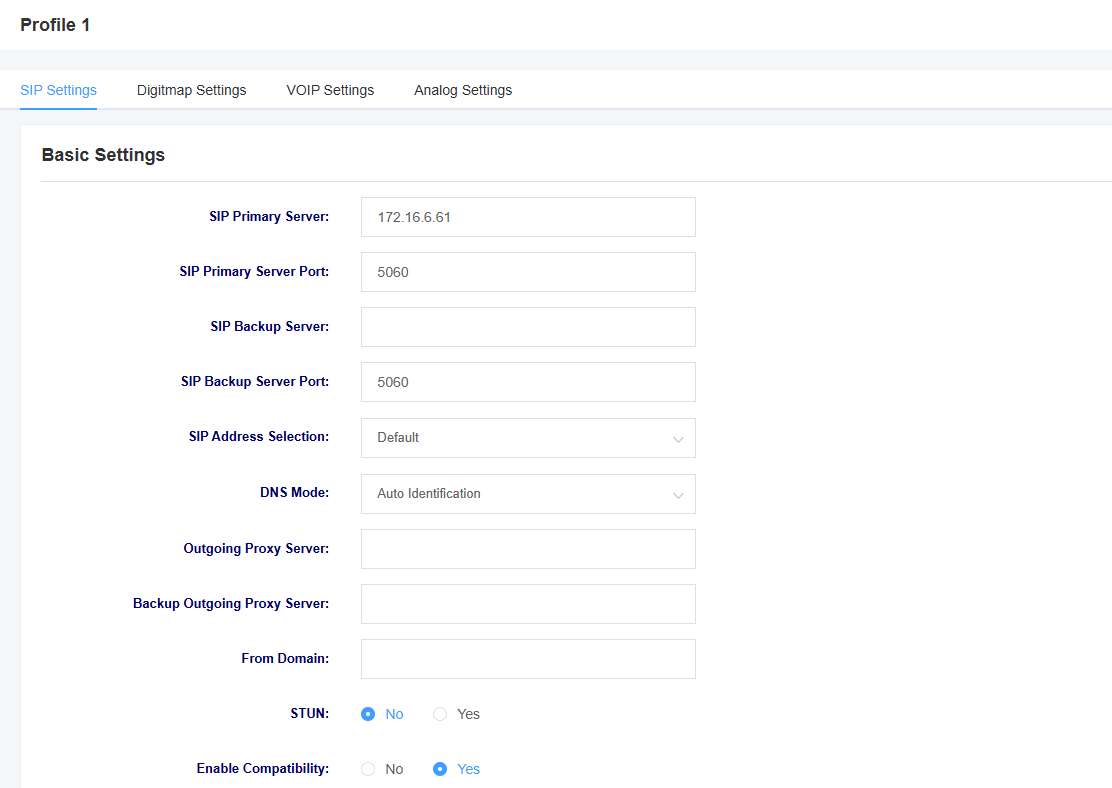
2.1.1 Configure the SIP Profile

Configure the SIP profile according to your network environment. The screenshot below shows an example configuration. Replace parameters such as the server address with the actual values for your installation.
Pasted

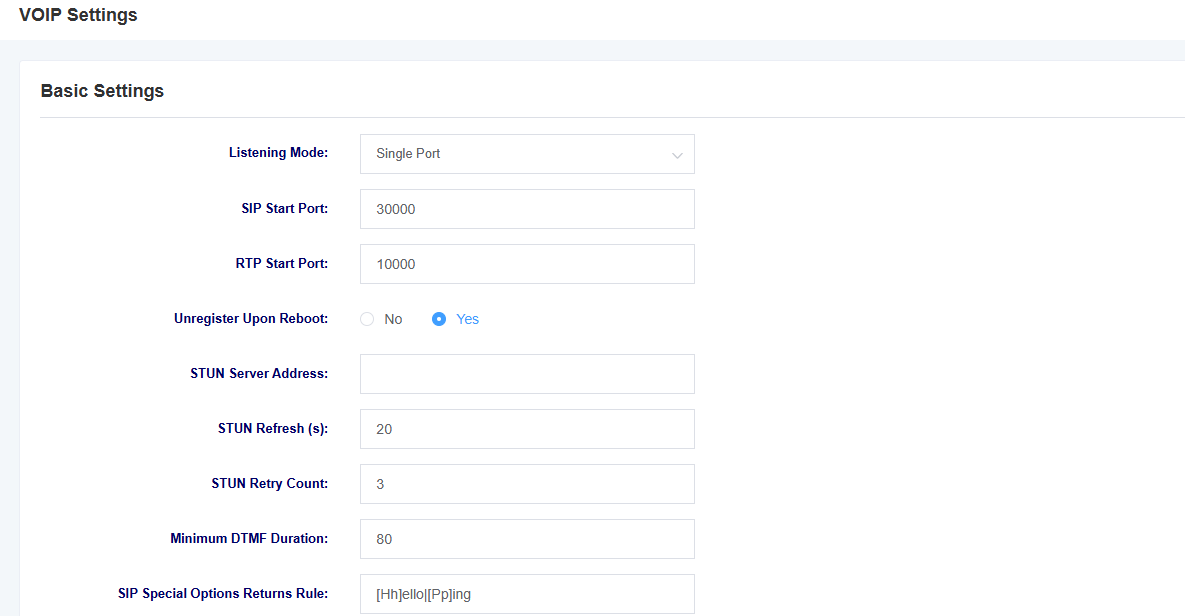
2.1.2 Set the SIP Listening Port

Confirm the following in the gateway’s SIP settings:

  • Listening mode: Single Port

  • SIP port: 30000

This interconnection scenario without registration requires single-port listening mode.
Pasted 1

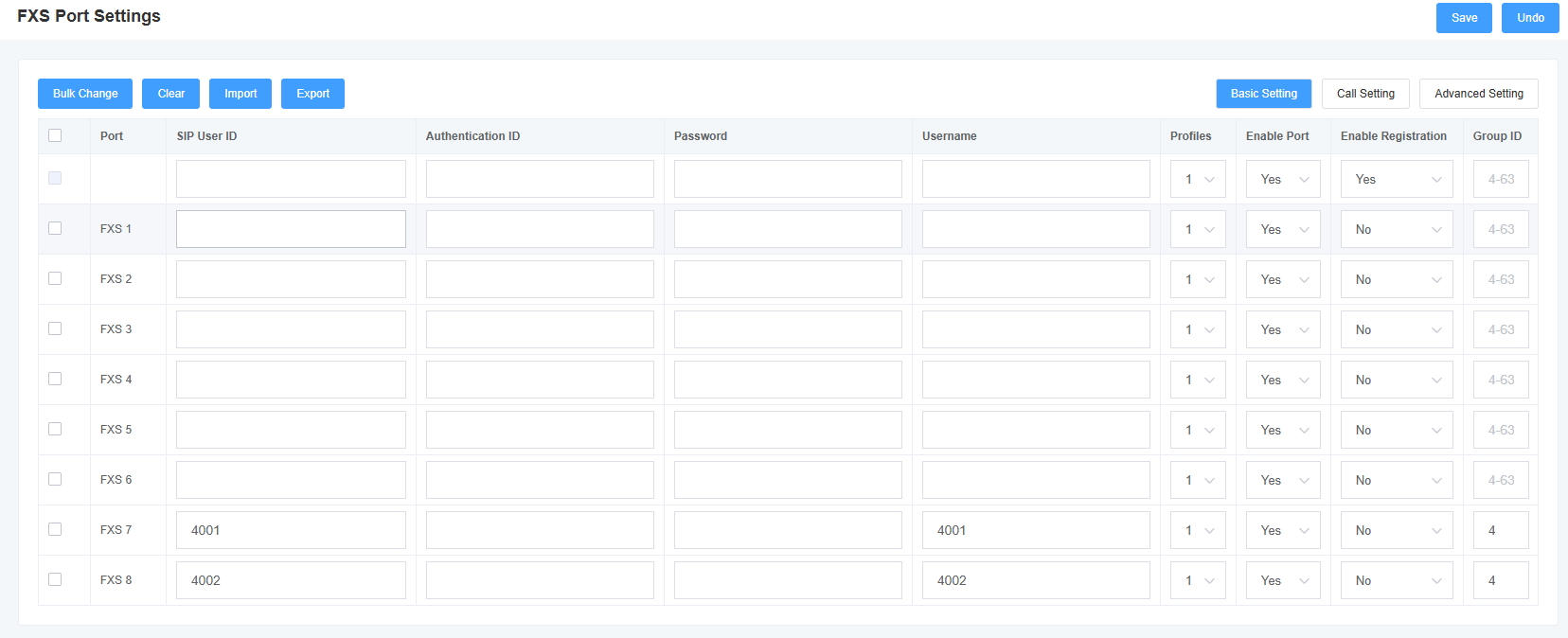
2.1.3 Configure the FXS Extensions

In the FXS port settings, configure the SIP user ID and username for each port you intend to use. In this example, port 7 is configured as 4001, and port 8 as 4002. These FXS extensions do not need to be created on the PBX.
Pasted 2

2.1.4 Enable Local Switching and Configure the Number Table

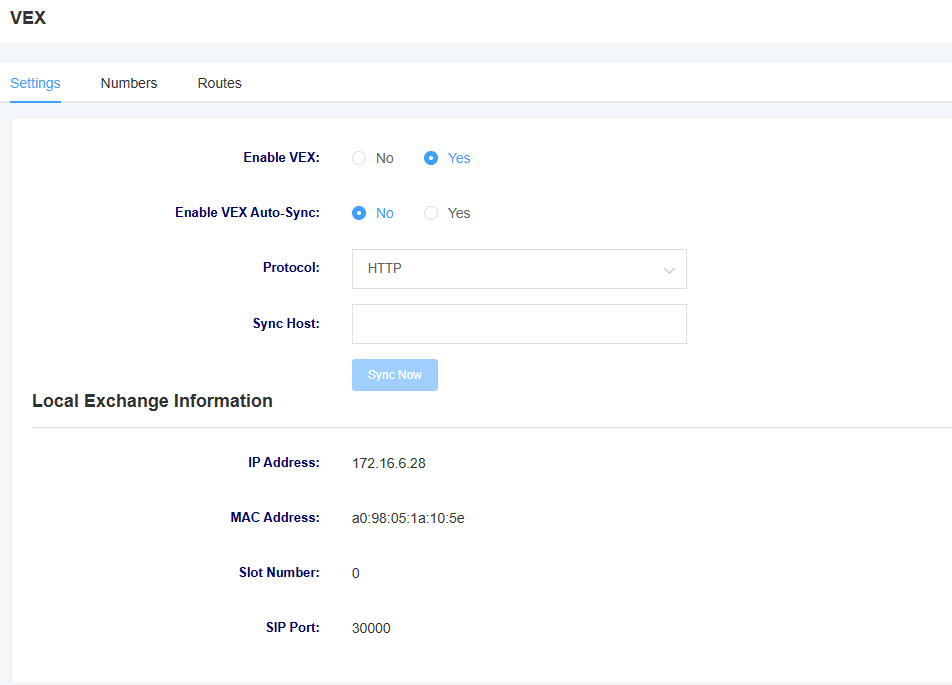
Enable local switching in the gateway’s “Local Switching” settings, then add mappings between the FXS analog extension numbers and their physical ports to the number table. The example mappings are as follows:

Extension number Type Slot number FXS port
4001 FXS 0 7
4002 FXS 0 8

Save the local switching settings and the number table configuration.
Pasted 3

2.2 Configure the PBX Peer-to-Peer Trunk

Create a SIP peer-to-peer trunk on the PBX pointing to the FXS gateway:

  • Peer address: FXS gateway IP address

  • Peer port: 30000

If the PBX uses a dialing prefix to select this trunk, configure number manipulation to remove or replace the trunk selection prefix so that the number sent to the gateway matches the SIP user ID in the gateway’s local switching number table. For example, if the gateway’s number table contains 4001, the final number sent to the gateway must be 4001.

3. Verification

Test call Expected result Verification points
4001 calls 4002 Call connects Switched locally by the gateway; on-site verification found no corresponding CDR on the PBX
7001 calls 4001 Call connects The extension registered with the PBX calls the FXS extension through the SIP peer-to-peer trunk
4001 calls 7001 Call connects The FXS extension calls the extension registered with the PBX through the trunk

The screenshot below shows example call records on the gateway, which can be used to confirm the call status for the numbers above. These are gateway records and do not represent PBX CDRs.

Still stuck? How can we help?

Was this page helpful? Yes No

How can we help?

Leave a Comment Cancel reply

CONTENTS

Copyright © 2002-2024 OpenVox all rights reserved.