Wirelessa Gateway connect with UScale
This document mainly describes the detailed steps of connecting the wireless gateway with UScale.
Follow the steps below to configure two-way calls between the phone and the gateway:
Outgoing call: from UScale SIP extension 1000 to the gateway through relay 6700;
Incoming call: call from an outside line to the gateway, through SIP trunk 6700 to UScale, and then send the call to the 1000 SIP extension through UScale;

In the following steps, the parameters below are mandatory configurations, and other parameters can be configured according to your needs.
Step1. Create a SIP Trunk in UScale Server
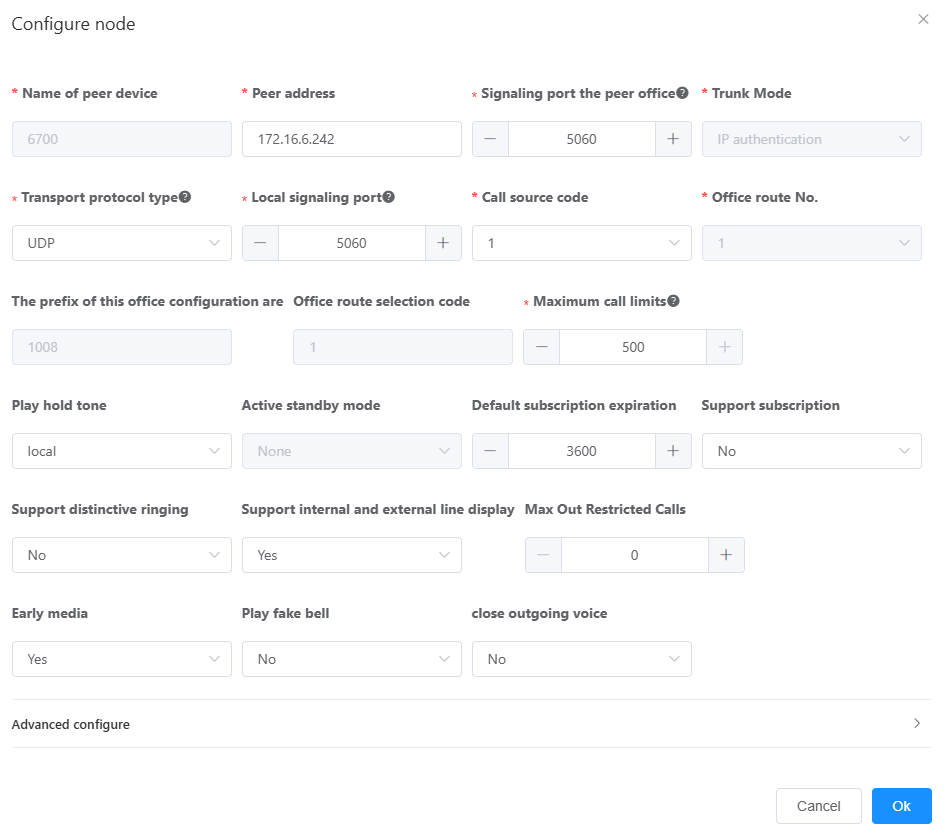
Please login your UScale server to create a SIP trunk(6700) .In UScale server web, please choose “Trunk Manage—>Trunk—>SIP” to set like that:
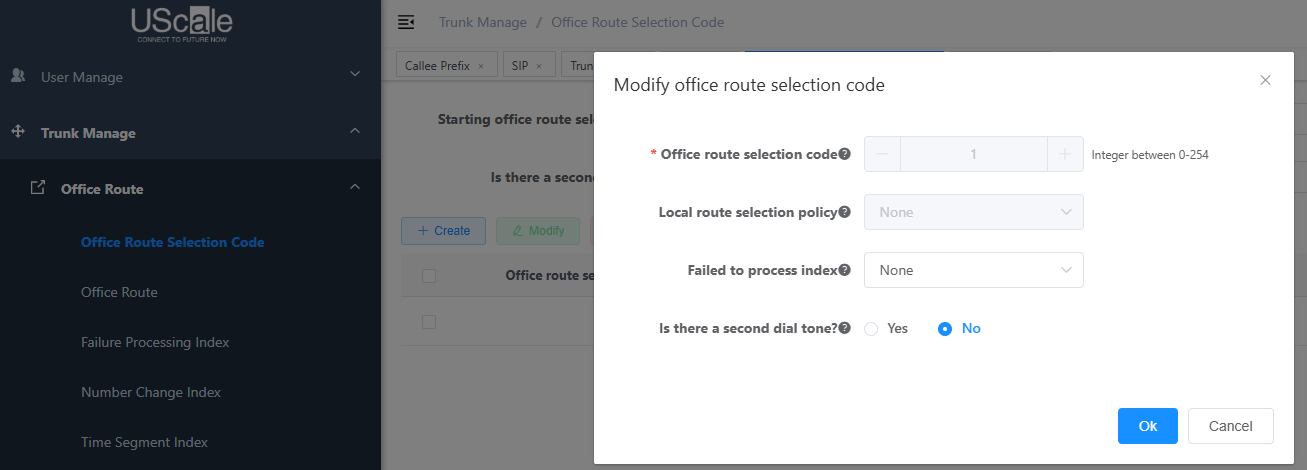
Set office route selection code
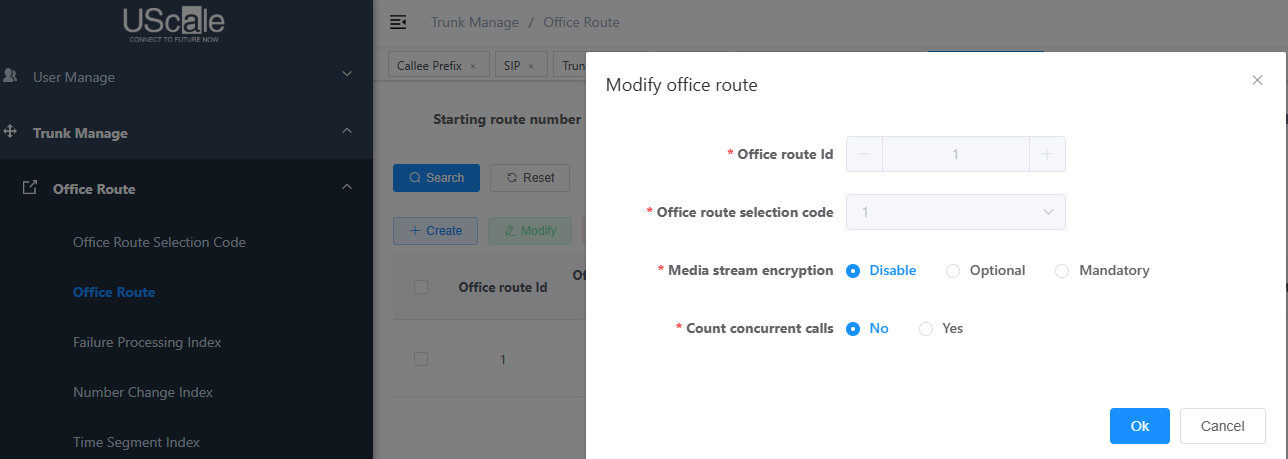
Set office route id
Set trunk mode
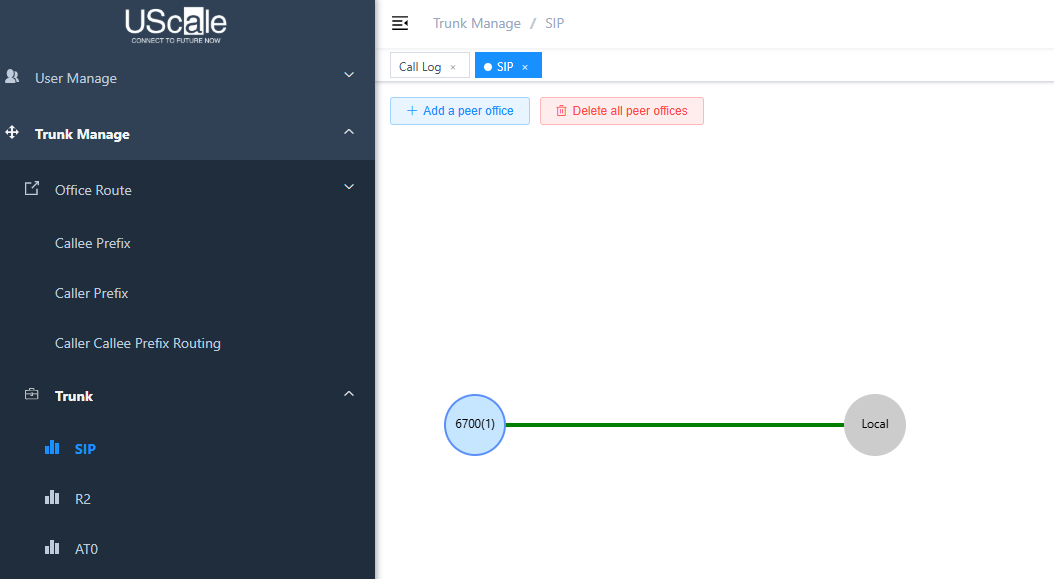
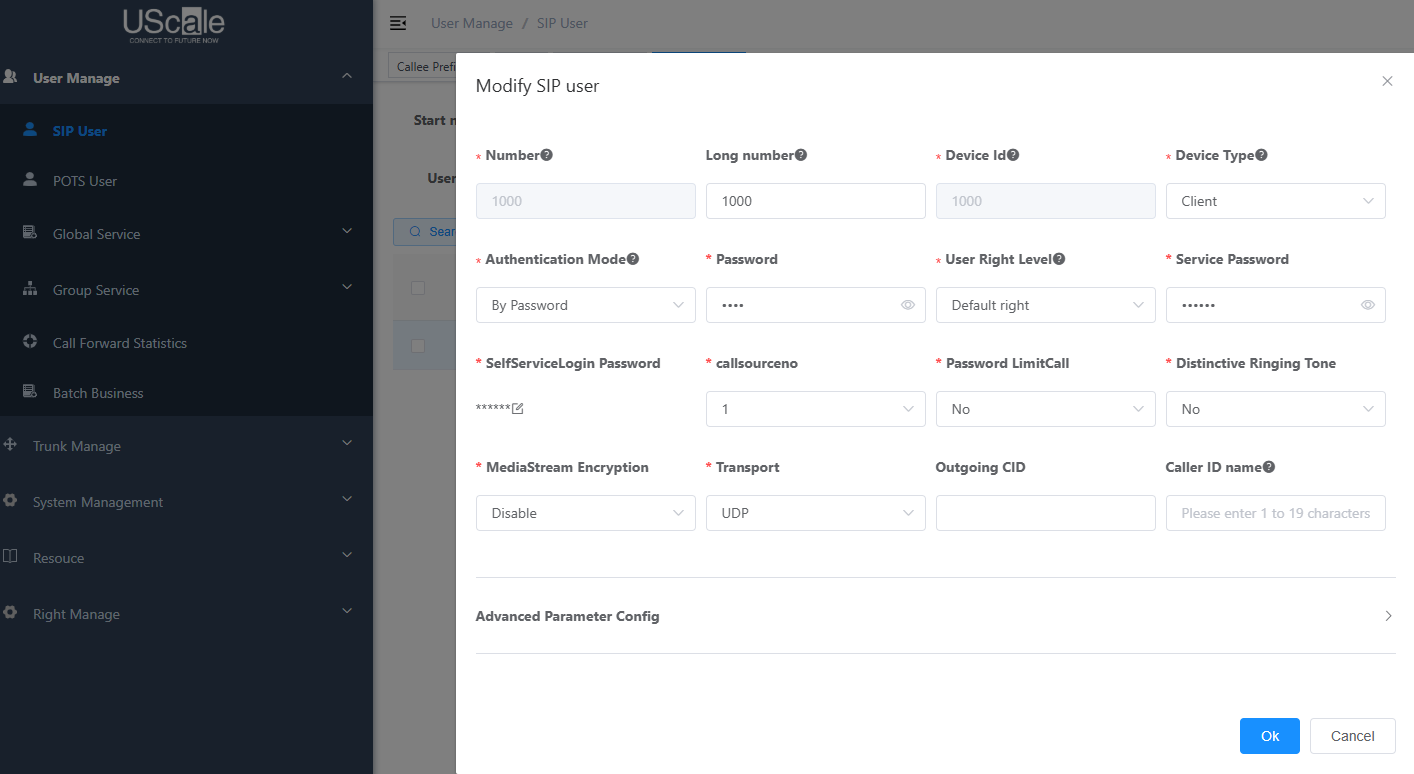
Step 2. Create a sip extension named 1000
Create a sip extension named 1000 in webpage “User Manage —->SIP User”.
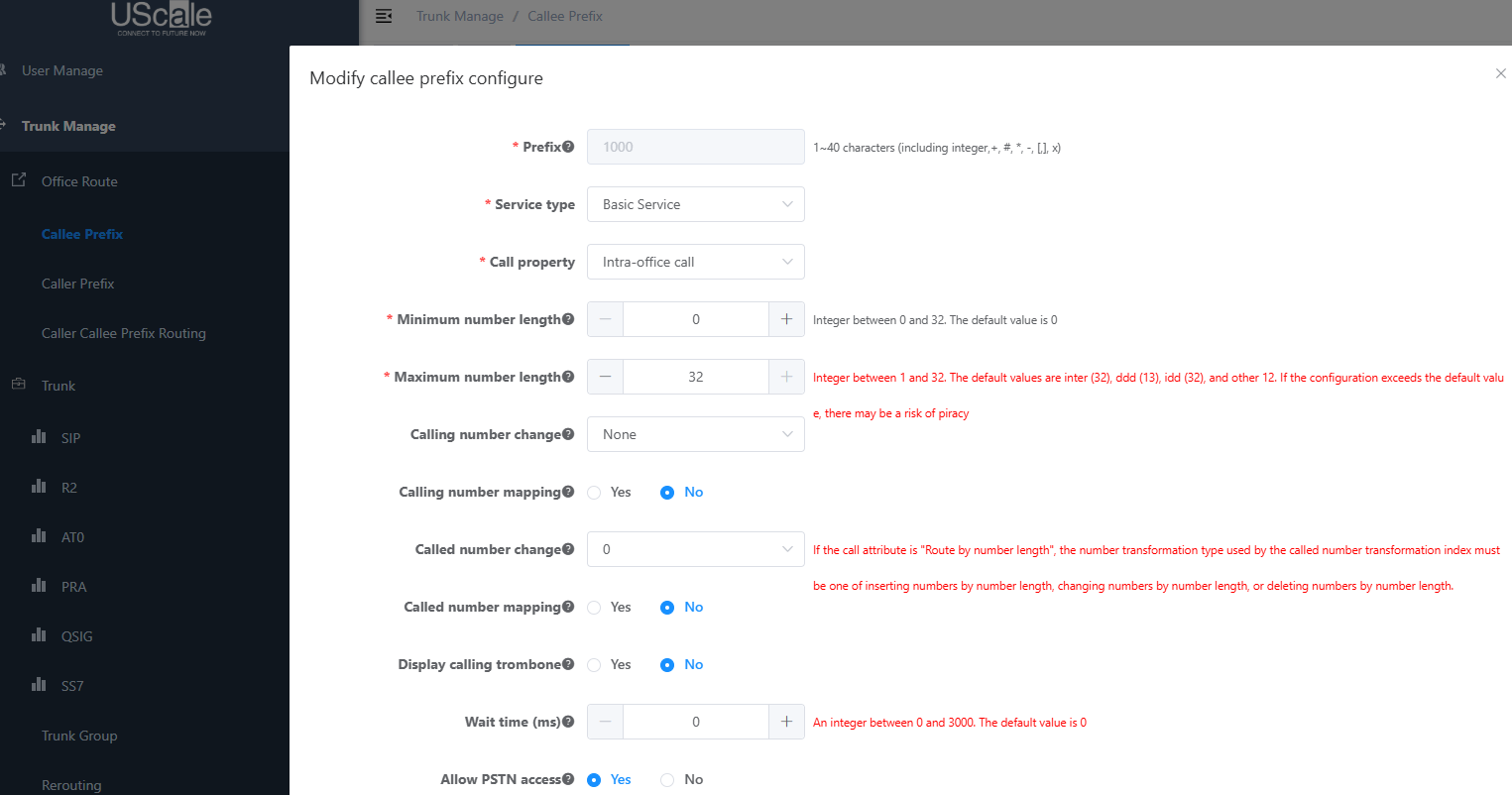
Step 3. Configure callee prefix in UScale
set callee prefix
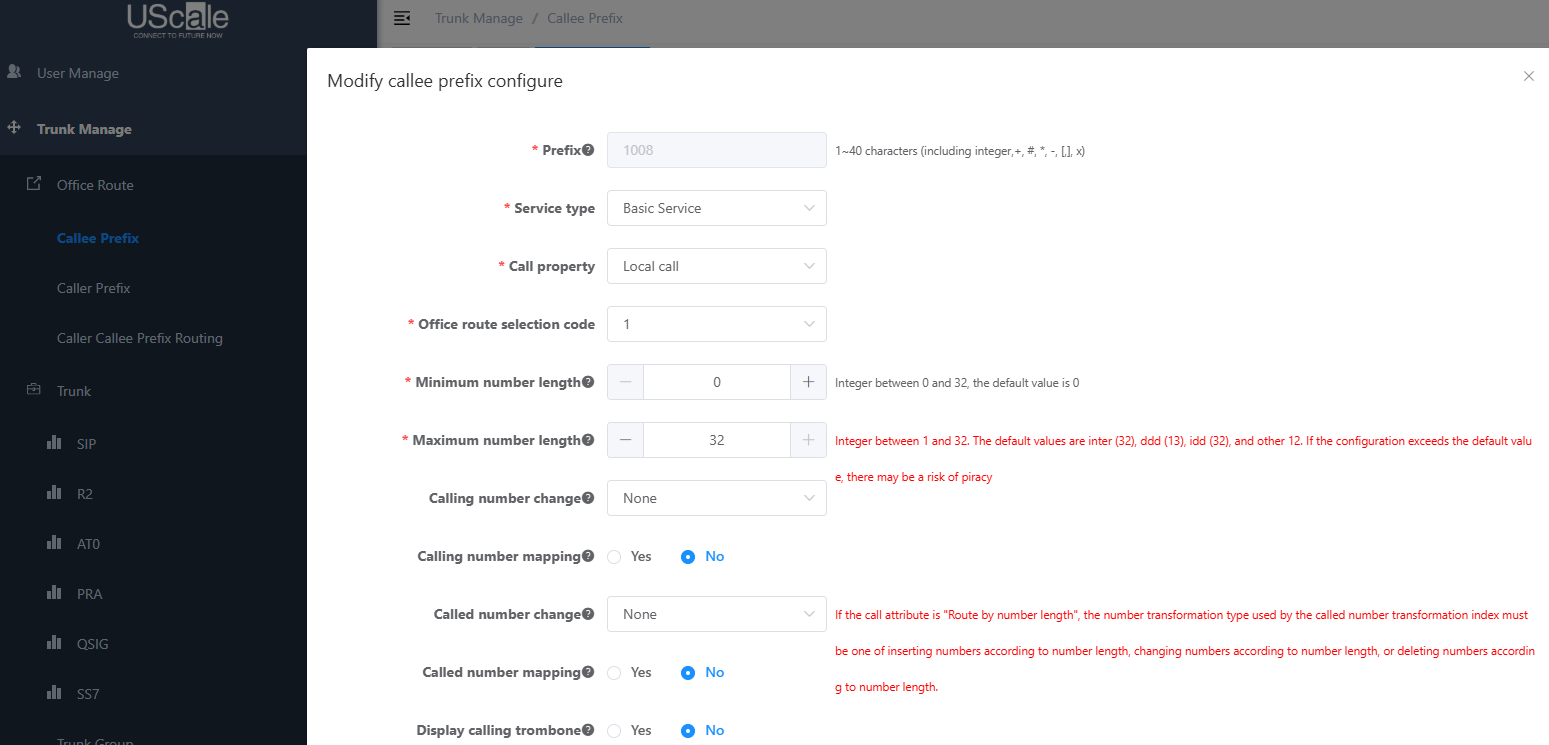
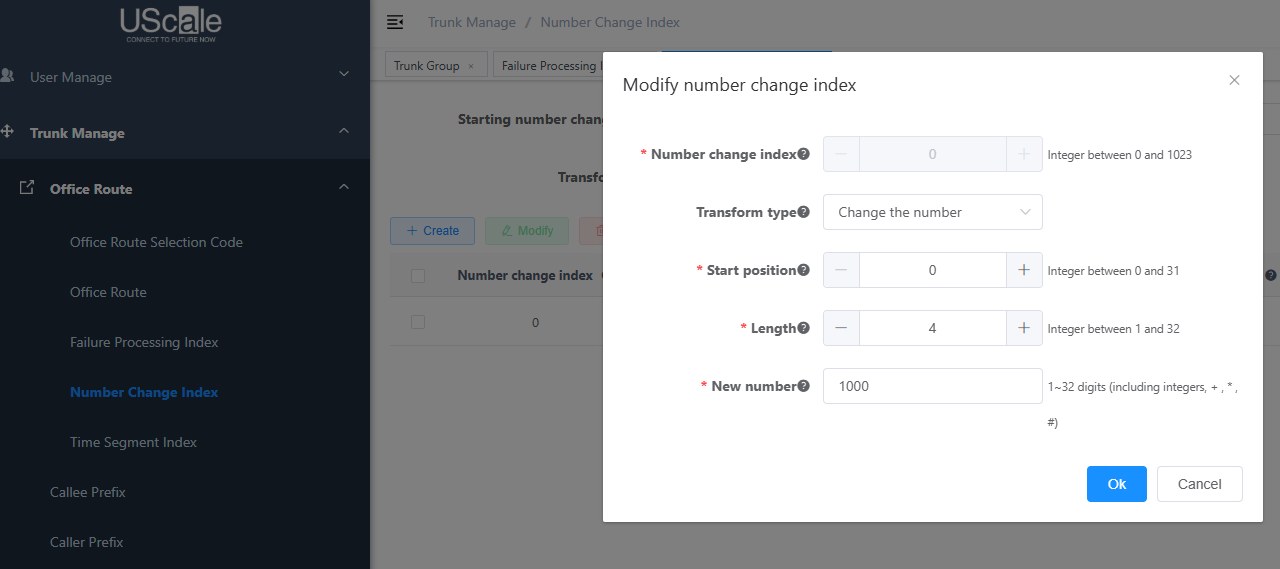
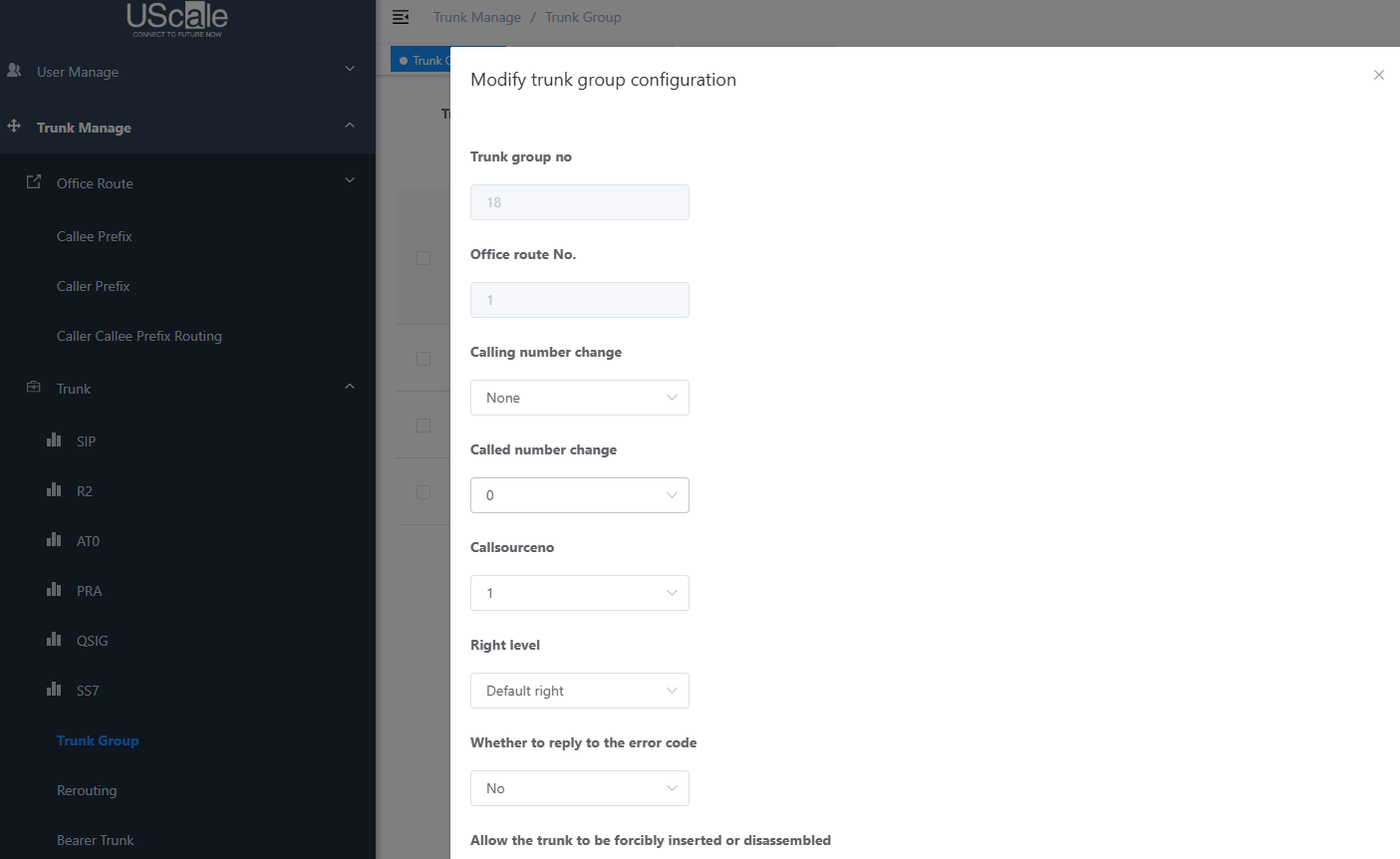
set number change index for incoming call
Step 4. Set Network Parameters in Web
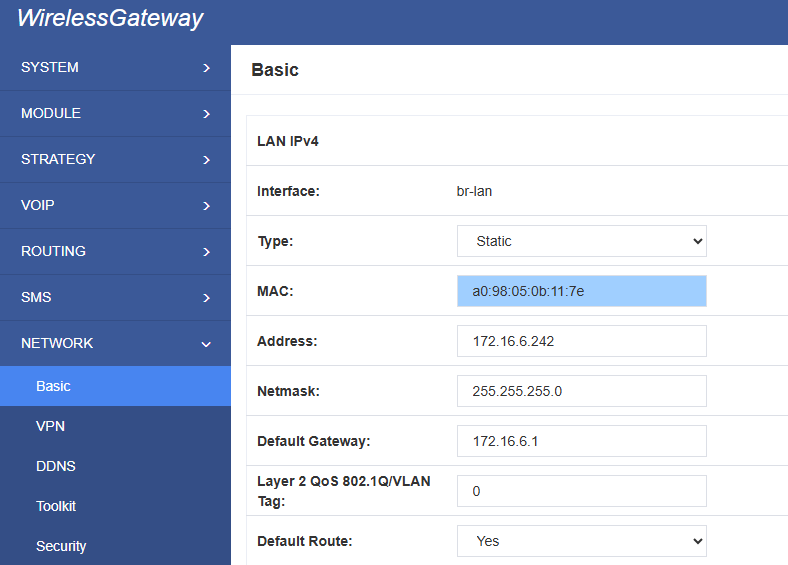
Log in to the network in the browser, and click “Network -> LAN Settings” to set your network parameters. The figure below is an example for reference only.
Step 5. Create a SIP Endpoint in Web
Please select “SIP—>SIP Endpoints—>Add New SIP Endpoint” to set SIP trunk. The following figure shows detail information about how to set it.
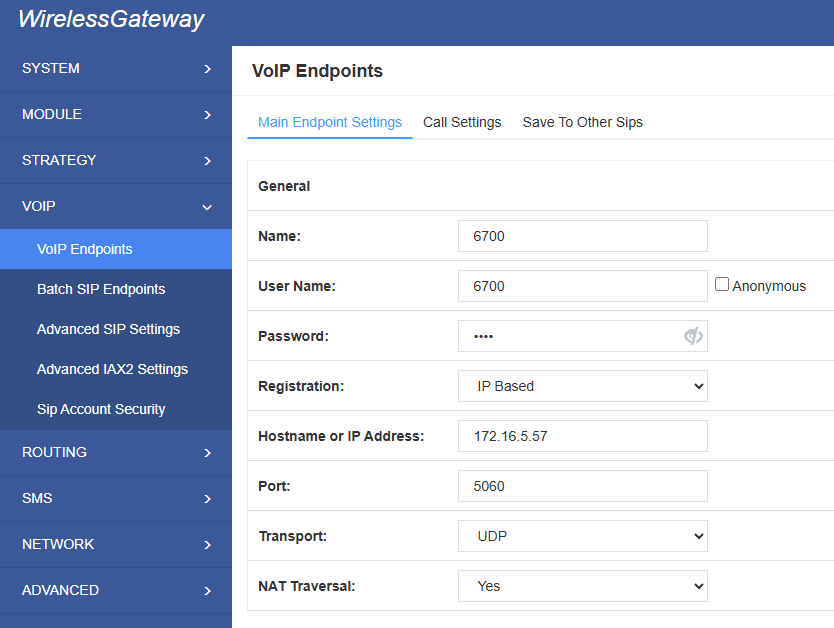
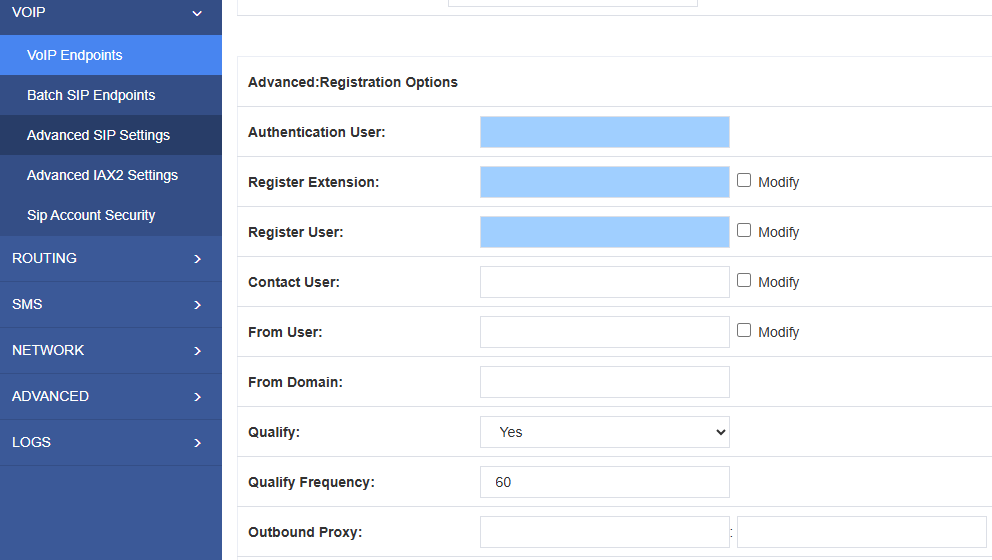
About other parameters in SIP, please set by your requirements for there is no need to set them in simple calls.
Step 6. Set Routing Rules in Web
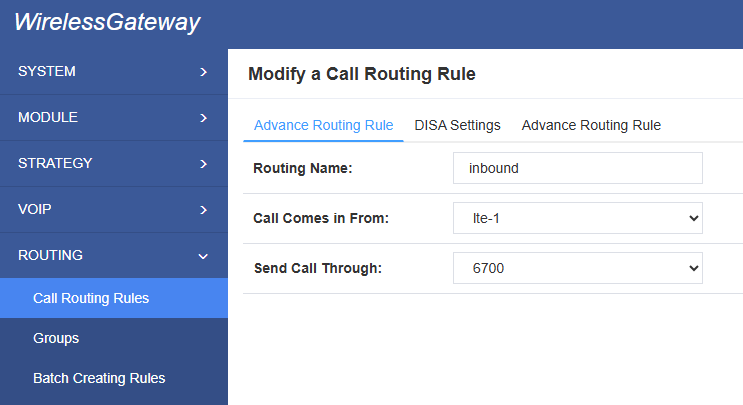
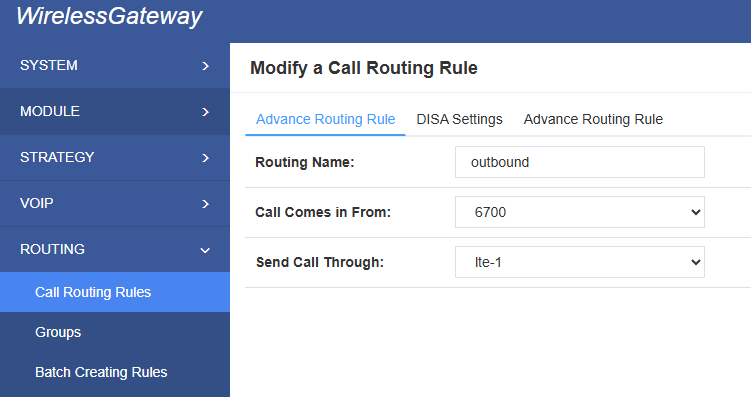
Click “ROUTING—> Call Routing Rules—> New Call Routing Rule” to set outbound and inbound routing rules like the following:
Inbound routing rules:
Outbound routing rules:
Please save all your changes to make effect.
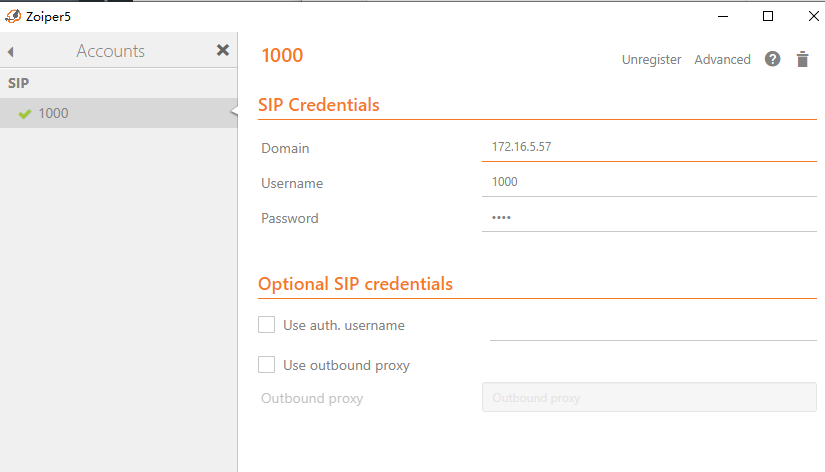
Step 7. Register a SIP extension by software
Taking advantage of SIP software such as Xlite, eyeBeam, Zopier to register a SIP extension(1000).
Test call:
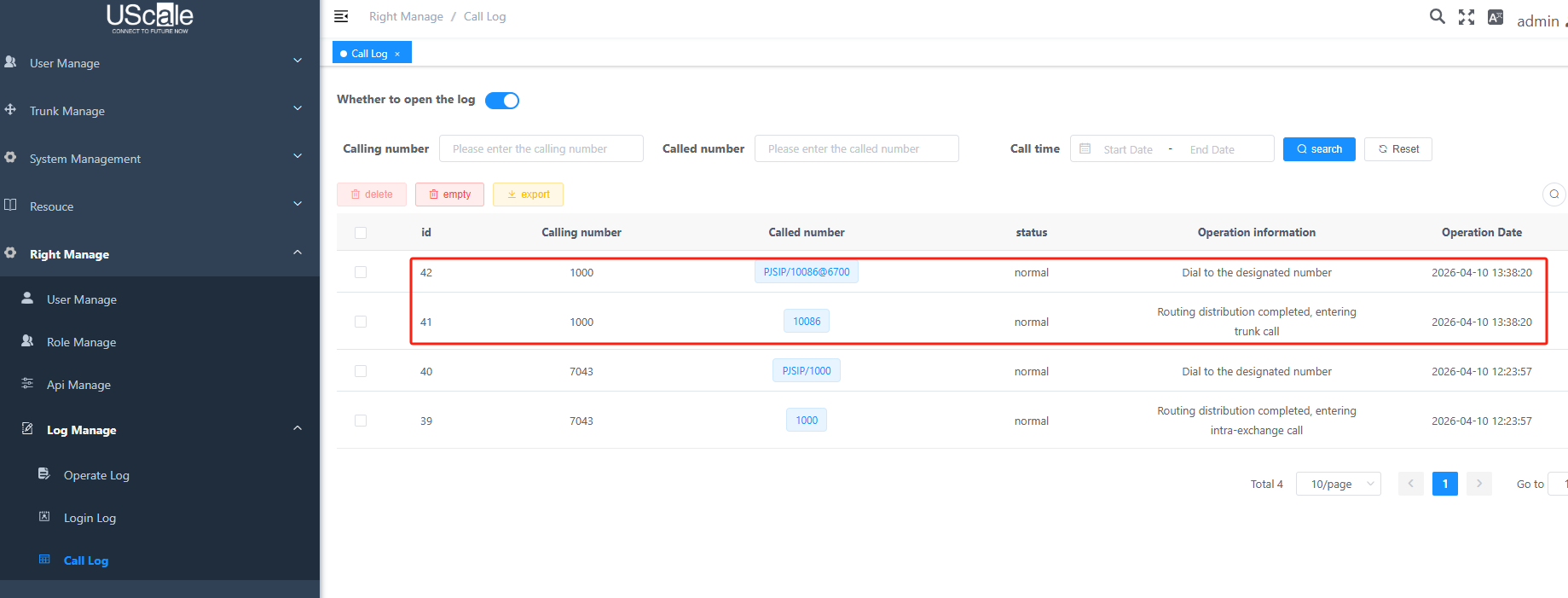
Incoming call test: Dial the number of port 1 on the gateway via your mobile to see if 1000 will ring. If 1000 rings, it means your configuration is successful; unless, it means there is something wrong with your configuration, please check it.
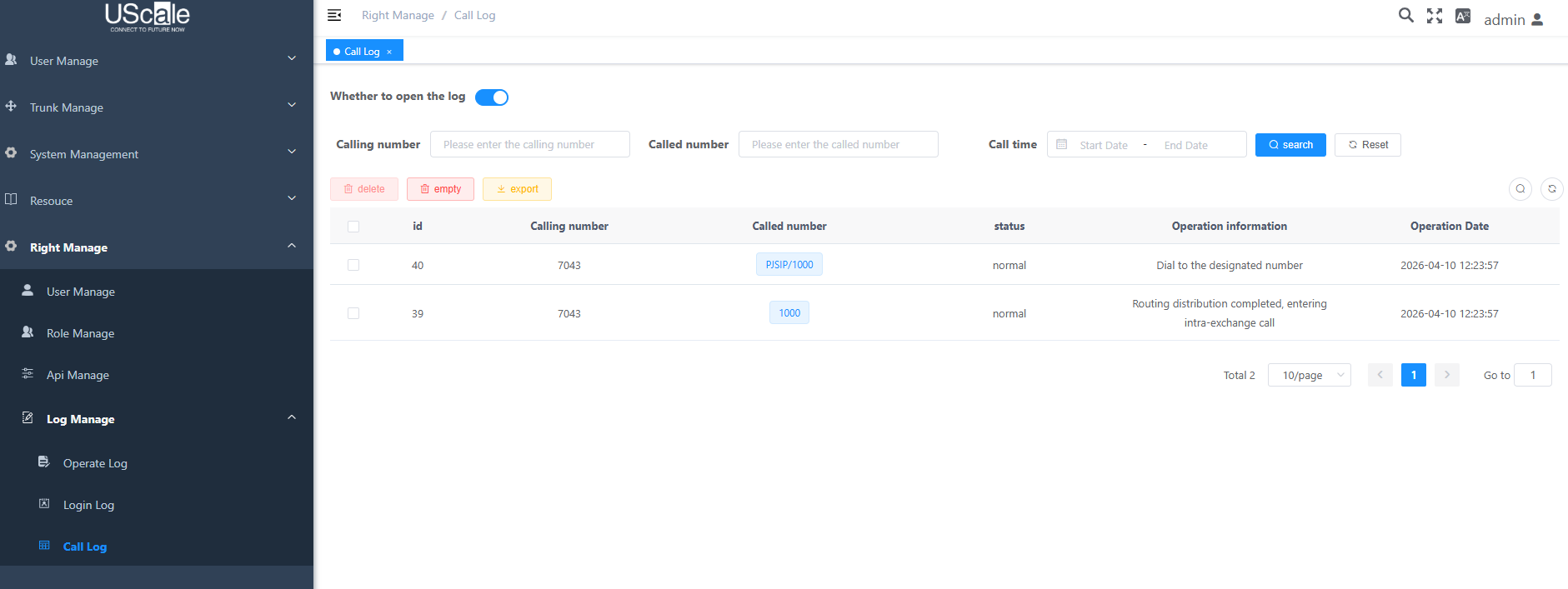
Outgoing call test: Dial your mobile number (prefix is 100) on 1000 extension registered in a software phone. If your mobile rings, it means your configuration is ok; unless, please check your configuration.